


If you're working in software development today, whether as a QA engineer, developer, or even a tech leader, you already know that manual testing alone just doesn't cut it anymore. Modern applications move fast, features ship faster, and bugs slip through even faster if you don't have automation in place.
And that's exactly where Selenium WebDriver becomes your best friend.
Selenium WebDriver is one of the most trusted, widely used automation tools for testing web applications. It lets you automate browser actions just like a real user like typing, clicking, scrolling, navigating, validating content, and so much more. This Selenium WebDriver guide is designed to help beginners and professionals build reliable automation frameworks.
What is Selenium WebDriver?
Selenium WebDriver is an open-source collection of APIs designed to automate web browser interactions.
It allows you to write scripts in various programming languages to simulate user actions on web applications, including clicking buttons, filling forms, navigating pages, and validating content. Selenium automation testing plays a major role in modern QA strategies.
Unlike traditional testing approaches that rely on manual intervention, WebDriver drives browsers natively, exactly as a real user would, making it ideal for functional testing, regression testing, and cross-browser compatibility testing.
The Selenium Suite Explained
Before diving deeper into WebDriver, it's important to understand that Selenium is not a single tool but a comprehensive suite consisting of:
- Selenium IDE: A Firefox/Chrome plugin for recording and playback of test scripts
- Selenium WebDriver: The core API for browser automation (formerly Selenium 2.0)
- Selenium Grid: A tool for running parallel tests across multiple machines and browsers
- Selenium RC (Retired): The predecessor to WebDriver, now officially deprecated
WebDriver emerged from the merger of Selenium RC and a project called WebDriver, combining their strengths to create a more powerful automation framework.
Why Selenium WebDriver is the Industry Standard?
Multi-Language Support: Write tests in Java, Python, C#, Ruby, JavaScript, PHP, and more. This flexibility allows teams to work in their preferred programming language without learning new tools.
Cross-Browser Compatibility: WebDriver supports all major browsers including Chrome, Firefox, Safari, Edge, and Opera. Your tests run consistently across different browser environments.
Platform Independence: Run tests on Windows, macOS, Linux, and Solaris. This cross-platform capability ensures your application works seamlessly regardless of the user's operating system.
Open Source and Community-Driven: Being open source means zero licensing costs and access to a vast community of contributors who continuously improve the framework and provide support.
Integration-Friendly: WebDriver integrates seamlessly with popular test frameworks (TestNG, JUnit, pytest), build tools (Maven, Gradle), and CI/CD platforms (Jenkins, GitHub Actions, CircleCI).
Selenium WebDriver Architecture
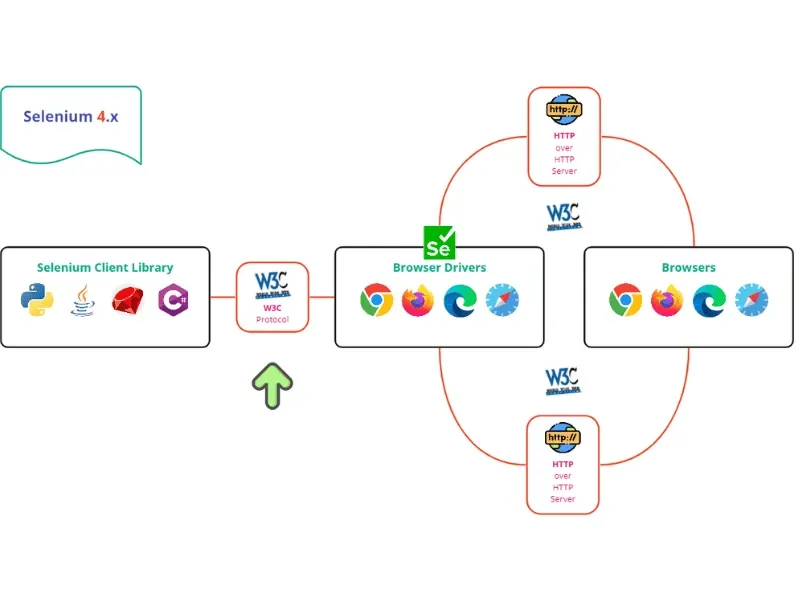
Understanding the Selenium WebDriver architecture is essential to write efficient scripts, and how Selenium WebDriver functions internally are crucial for writing effective automation scripts and troubleshooting issues when they arise.
Architecture Evolution: Selenium 3 vs Selenium 4
Selenium 3 Architecture
In Selenium 3, the communication flow involved four main components:
- Selenium Client Libraries: Language-specific bindings (Java, Python, etc.) that provide APIs for writing test scripts
- JSON Wire Protocol: A RESTful web service that acted as a translation layer between client libraries and browser drivers
- Browser Drivers: Browser-specific executables (ChromeDriver, GeckoDriver, etc.) that communicate with actual browsers
- Browsers: The actual web browsers (Chrome, Firefox, Safari, etc.)
The JSON Wire Protocol acted as an intermediary, encoding and decoding API requests between the client libraries and browser drivers. While functional, this approach introduced latency and potential compatibility issues across different browsers.
Selenium 4 Architecture – (Modern Architecture)
Selenium 4 brought a major architectural shift by adopting the W3C WebDriver standard, which eliminated the JSON Wire Protocol and enabled direct communication between client libraries and browser drivers. This standardization ensures:
- Faster execution: Direct communication reduces latency
- Better stability: Standardized protocol means fewer compatibility issues
- Improved reliability: All browsers interpret commands the same way
- Future-proof design: Built on official web standards maintained by W3C
How WebDriver Communicates with Browsers
The communication model in Selenium 4 follows these steps:
- Your test script calls a WebDriver command
- The client library translates this into a W3C-compliant HTTP request
- The browser driver receives the HTTP request
- The driver uses browser-native APIs to execute the command
- The driver sends an HTTP response back with the result
- Your script receives the response and continues execution
This architecture ensures that WebDriver remains browser-agnostic while providing deep integration capabilities.
Key Components in Detail
Client Libraries
These are the foundation of your test automation scripts. Each supported language has its own library that provides a consistent API for interacting with WebDriver. For example:
- Java: Selenium WebDriver JAR files
- Python: selenium package (install via pip)
- C#: Selenium.WebDriver NuGet package
- JavaScript: selenium-webdriver npm package
Browser Drivers
Each browser requires its own driver executable:
- ChromeDriver: For Google Chrome and Chromium
- GeckoDriver: For Mozilla Firefox
- EdgeDriver: For Microsoft Edge
- SafariDriver: For Apple Safari (built into macOS)
Starting with Selenium 4, Selenium Manager automates driver management, eliminating the need for manual driver downloads.
W3C WebDriver Protocol
This standardized protocol defines exactly how automation commands should be structured and interpreted. It ensures that when you write driver.get("https://example.com"), it works identically across all supported browsers.
Getting Started with Selenium WebDriver
Prerequisites
Before you begin, ensure you have:
- Any programming language: Java, Python, JavaScript, C#, etc.
- A browser
- IDE like VS Code, IntelliJ, PyCharm, Eclipse
- Basic programming foundations
Installation and Setup
Java Setup with Maven
- Create a new Maven project in your IDE
- Add Selenium dependency to your pom.xml:
- Maven will automatically download Selenium and its dependencies
Python Setup
Install Selenium using pip:
The selenium package includes everything you need to get started.
JavaScript (Node.js) Setup
Initialize a Node.js project:
Install selenium-webdriver:
C# Setup with NuGet
- Create a new .NET project in Visual Studio
- Install via NuGet Package Manager:
Your First Selenium Script
Let's create a simple script that opens Google, searches for "Selenium WebDriver," and verifies the page title.
Java Example:
Python Example:
Understanding WebDriver Basics
Driver Initialization
Creating a WebDriver instance is your starting point. Each browser has its own driver class:
Navigation Methods
WebDriver provides several methods for browser navigation:
Browser Management
Key Features and Capabilities
Element Locators
These are the ways WebDriver finds elements in a webpage.
The 8 locator strategies:
- ID (best and fastest)
- Name
- Class Name
- Tag Name
- Link Text
- Partial Link Text
- CSS Selector
- XPath
Each locator has its own use case. CSS & XPath are the most flexible.
Selenium 4's Relative Locators
Find elements based on position:
Super useful when elements don't have IDs or stable attributes.
Interacting with Web Elements
Once you've located an element, you can perform various actions:
Input Actions:
Click Actions:
Retrieving Information:
Selenium WebDriver Locators Comparison Table
| Locator Type | Example | Best Use Case | Pros | Cons |
|---|---|---|---|---|
| ID | By.id("username") | Unique form fields, stable elements | Fastest, most reliable | Not always available |
| Name | By.name("email") | Inputs, login forms | Simple, readable | Sometimes duplicates |
| Class Name | By.className("btn") | Buttons, UI elements | Easy to use | May match multiple elements |
| CSS Selector | By.cssSelector(".input-field") | Complex UI structures | Very flexible, fast | Hard to read for beginners |
| XPath | By.xpath("//input[@type='text']") | Dynamic elements or no other locator | Very powerful | Slowest, brittle if misused |
Handling Different Element Types
Dropdowns (Select Elements):
Checkboxes and Radio Buttons:
File Upload:
Synchronization: Wait Strategies
One of the most critical aspects of Selenium automation is proper synchronization. Modern web applications use AJAX, dynamic content loading, and animations that require intelligent waiting strategies.
1. Implicit Wait
Applies to all elements.
2. Explicit Wait
Wait for a specific condition.
3. Fluent Wait
Add custom polling and ignored exceptions.
Explicit waits are the most recommended.
Actions Class (Mouse & Keyboard)
Great for advanced interactions:
- Hover
- Double click
- Right click
- Drag & drop
- Keyboard shortcuts
Working With Windows, Frames & Alerts
Switch windows:
Switch iframe:
Handle alerts:
Screenshots
JavaScript Execution
Useful when WebDriver can't perform a direct action.
CDP (Chrome DevTools Protocol)
Monitor network, geolocation, logs, and more:
Advanced WebDriver Techniques
Building Page Object Model (POM)
The Page Object Model is a design pattern that enhances test maintainability by creating an abstraction layer between test code and page-specific code.
- Without POM → messy
- With POM → clean, readable, maintainable
Data-Driven Testing
Execute the same test with multiple data sets:
Headless Browser Testing
Run tests without GUI for faster execution:
Mobile Web Testing
Test responsive designs and mobile browsers:
Parallel Test Execution with Selenium Grid
Selenium Grid has been redesigned with improved performance, better logging, and enhanced session management capabilities. Run tests concurrently across multiple machines:
Setting up Grid Hub:
Setting up Grid Node:
Connecting to Grid:
Cloud Testing Platforms
For scalable cross-browser testing without maintaining infrastructure, consider cloud platforms:
- BrowserStack: 3000+ real device combinations
- LambdaTest: Parallel testing on 3000+ browsers
- Sauce Labs: Comprehensive test analytics
Best Practices for Selenium WebDriver
- Use meaningful variable names
- Prefer explicit waits
- Create helper methods
- Use Page Factory (Java)
- Add logging
- Take screenshots on failure
- Keep tests independent
- Keep your configuration external (URLs, waits, browsers, etc.)
Common Challenges & Solutions
1. Stale Element Reference
Happens when the DOM updates. Solution → retry logic.
2. Element Not Interactable
Fix:
- Wait for element
- Scroll into view
- JavaScript clicks
3. Dynamic Content
Use:
- presence_of_element
- text_to_be_present
- attribute checks
4. CAPTCHA
You cannot automate CAPTCHA reliably.
Use:
- Test environments without CAPTCHA
- Test accounts
- Bypass tokens
5. Flaky Tests
Fix:
- Avoid hard sleeps
- Use waits properly
- Create fresh data
- Remove test dependencies
6. Cross-Browser Issues
- Don't rely on browser-specific behavior.
- Test on real devices or cloud grids.
7. Slow Test Execution
Speed up using:
- Parallel execution
- Headless mode
- Efficient locators
- Smart waits
Real-World Use Cases
- E-commerce automation
- Login & authentication flows
- Checkout process
- Form validations
- Dashboard validations
- Regression suites
- CI/CD quality gates
Conclusion
Selenium WebDriver continues to be one of the strongest tools for browser automation, thanks to its flexibility, open-source nature, and massive ecosystem.
Whether you're building a small regression suite or an entire enterprise automation framework, Selenium WebDriver gives you all the tools you need to automate reliably, efficiently, and at scale.
Browser automation with Selenium remains a preferred choice for teams targeting multiple environments.
If you apply the techniques and practices shared in this guide, you'll be well on your way to becoming a true Selenium expert in 2026 and beyond.
As teams scale their automation efforts, having the right practices and framework structure becomes crucial. Many engineering teams refine their Selenium setups with guidance from experts like PrimeQA, ensuring their automation remains stable, fast, and easy to maintain as products grow.